
What Is a Lead Request?
A lead request defines:
-
What services you want leads for
-
The service area where you want to receive leads
-
How competitive you want to be on price
-
How much you want to spend each week
You can create multiple lead requests if you offer different services or operate in different areas
Step 1: Start a new lead request
From your Jobble Pro dashboard:
-
Select "Create new lead request"
-
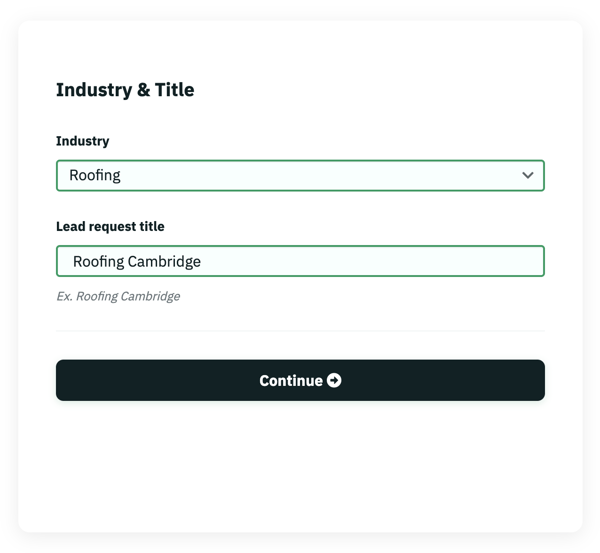
Select your industry and add a title.
-
Choose the service you want leads for (for example, plumbing, roofing, cleaning, or electrical)
-
Your title is for internal reference only. You can enter what is most helpful for you
-
Step 2: Define your service area
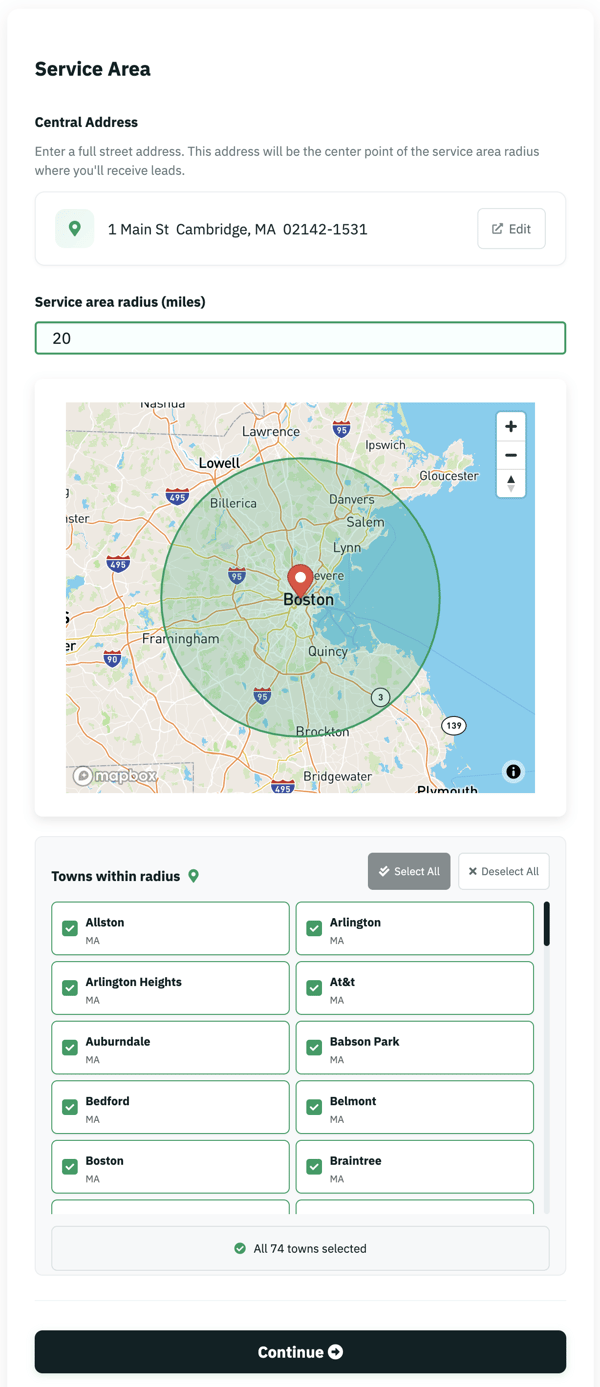
Next, you’ll choose where you want to receive leads.
You can define your service area by:
-
Entering a central address and adjusting the radius.
-
You can refine your service area using the list that populates to deselect any areas you do not want
Your service area determines:
-
How many leads are available
-
How competitive your market is
-
Typical lead pricing in that region
Tip: Starting with a moderate service area usually leads to more consistent results. You can always expand or adjust later.
Step 3: Set your budget and your max lead price
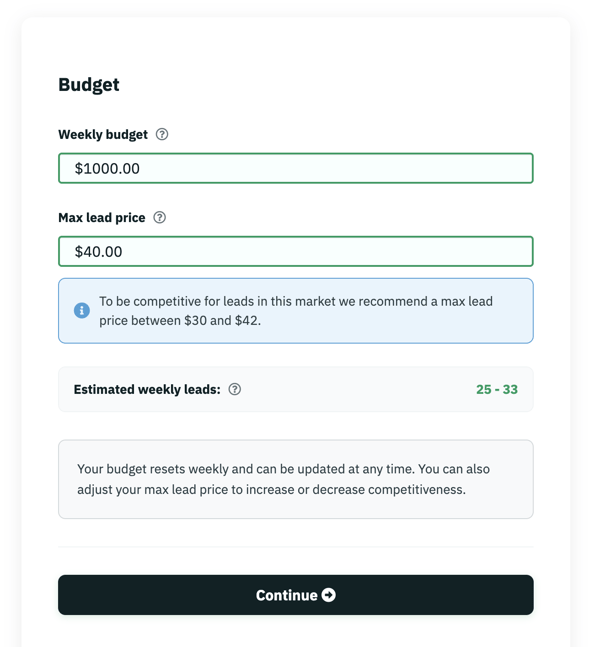
Your weekly budget is your total spending limit for leads.
-
Budgets reset automatically each week (Monday through Sunday)
-
You will never be charged more than your weekly budget
-
You can change your budget at any time
Your max lead price is the most you’re willing to pay for a single lead.
-
Higher max prices make you more competitive
-
Lower max prices may reduce volume in high-demand markets
Jobble Pro will show a recommended price range based on demand in your selected area to help you choose a competitive starting point.
You stay in control. You’ll never be charged more than your max price for a lead.
Step 4: Review and publish your request
Before publishing, you’ll see a summary of your lead request. If everything looks good, select "Confirm and publish"
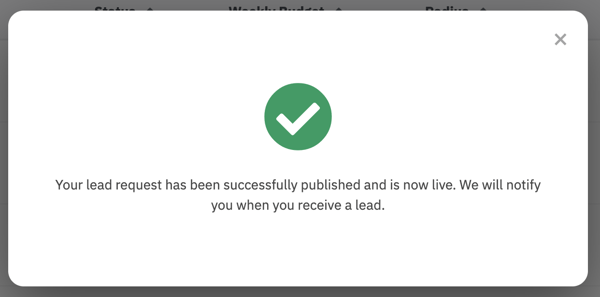
Once published, your lead request becomes active and eligible to receive leads.
After You Publish
-
Leads are delivered as they become available
-
You can deactivate, edit, or adjust your lead request at any time
-
Changes to pricing or budget take effect immediately
Tips for Success
-
Start with recommended pricing and budget, then fine-tune
-
Avoid setting your service area too small at first
-
Review leads early so you can respond quickly to customers
Need Help?
If you have questions or want guidance on optimizing your lead request, our support team is happy to help. You can email us at prohelp@jobble.com